Support
Whats New - April 2026
We've added drag and drop transcription, bring your own AI provider (OpenAI, OpenRouter, Custom), new languages, and more!

VibeSonic
What's new
Thanks to everyone who provided suggestions and feedback - this page covers everything that changed in this version update.
Note: Some features here relate to Pro accounts only.
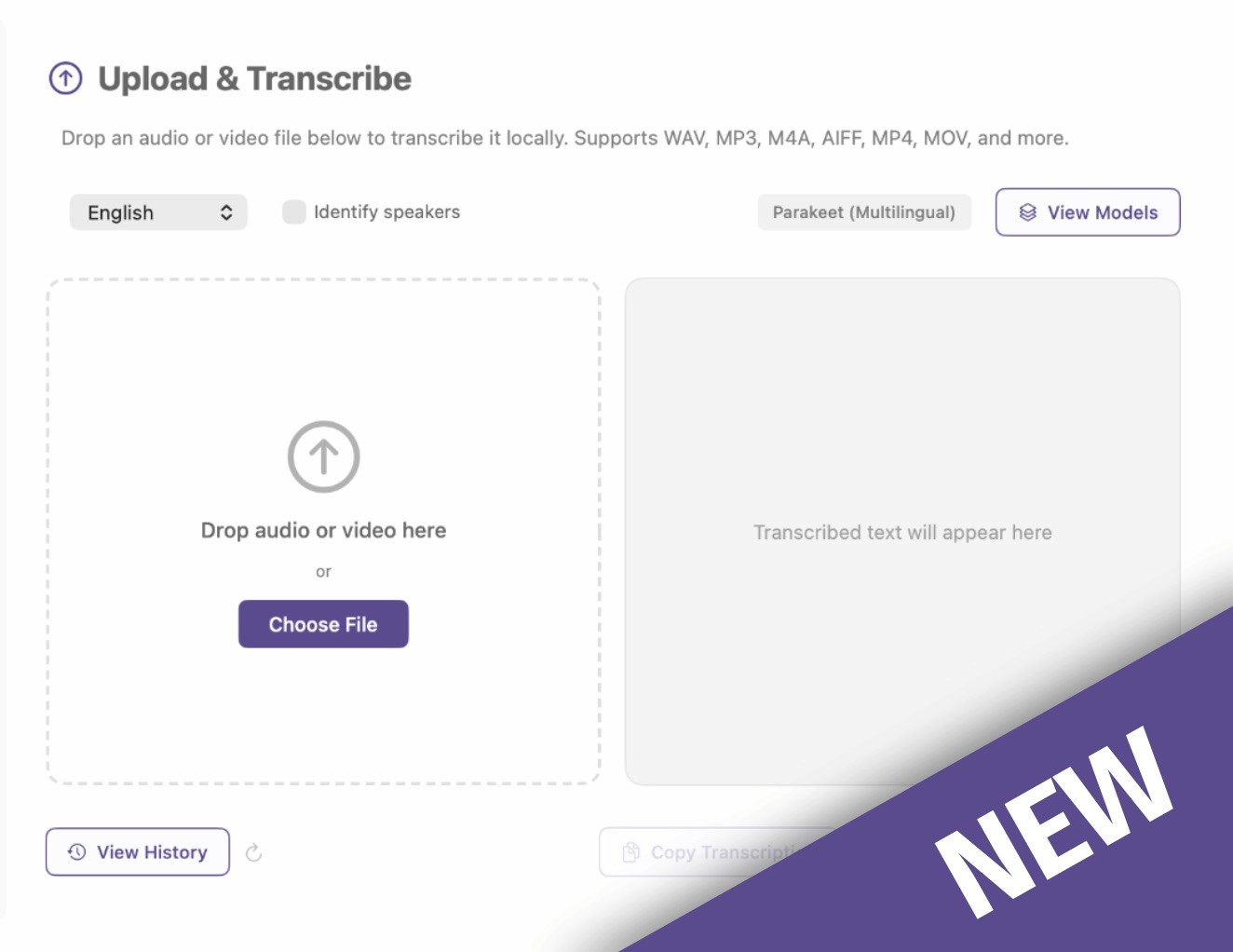
Drag-and-drop transcription
A new Import page in the sidebar lets you drop any audio or video file (MP3, M4A, WAV, AIFF, MP4, MOV, and more) and get a clean transcript. Speaker diarisation labels who's talking, and translation that flips the result into English on the fly. The format/Tidy Up button cleans up the transcript using your selected Pro account AI provider.
How to use: Click Import in the sidebar, then drag a file onto the drop zone.
Bring your own provider
Sonic Edit and Sonic Assistant now work with any provider you choose:
OpenAI — GPT-4 / GPT-5 family
OpenRouter — copy key from the model you wish to use, hundreds of models (Claude, Llama, Gemini, DeepSeek, Qwen)
Custom (OpenAI-compatible) — point it at Ollama, LM Studio, Together AI, or any local server
The Settings → Providers page is reorganised into clear sections: Sonic Edit & AI Provider (radio group of LLM providers), Sonic Perplexity (AI search tool), and Voice Transcription Cloud Providers (Groq, Deepgram).
How to use: Settings → Providers → tap a provider, add your API key, and click the radio circle on whichever LLM you want active for Sonic Edit and Sonic Assistant.
New AI providers
Three additional providers are now configurable in Settings → Providers:
OpenRouter — one API key for hundreds of models (Claude, Llama, Gemini, DeepSeek, Qwen). Great if you want to swap models without juggling multiple subscriptions.
Custom (OpenAI-compatible) — connect to any server that speaks the OpenAI chat API: Ollama or LM Studio for fully-local inference, Together AI / Fireworks / your own internal endpoint, etc. Includes URL safety validation to prevent misconfiguration.
Mistral (Voxtral) — added to the provider list, with cloud transcription via the Voxtral Mini model.
How to use: Settings → Providers → tap the provider you want → paste your API key (and base URL for Custom) → save.
New transcription models
The model lineup has expanded with both new engines and quantised variants for faster, lighter local transcription:
Parakeet TDT 0.6b (Nvidia) — fast, accurate, fully local default. Runs natively on Apple Silicon via FluidAudio.
Qwen3 ASR (MLX) — Apple Silicon-native model running through MLX, distributed as a 4-bit quantised build for fast, low-RAM local transcription.
Whisper Q5 (quantised) variants — Small Q5, Medium Q5, Large V3 Q5, Large Turbo Q5. Same accuracy as the originals at a fraction of the disk size and RAM use.
Improved Whisper accuracy — refined decoder parameters across all whisper.cpp models for cleaner transcriptions.
How to use: Settings → Models → browse the catalogue → click Download on the model you want → set as Selected when ready.
More keyboard shortcuts
Beyond the main recording shortcut, you can now assign Smartkeys for:
Sonic Edit — record with the AI Edit tool pre-selected
Sonic Assistant — record with the AI Assistant tool pre-selected
Sonic Perplexity — record with web-grounded Perplexity search pre-selected
Secondary language — record in a different language without changing your default
The voice commands ("sonic edit", "sonic assistant", "sonic perplexity") still work alongside the Smartkeys — you can use either or both. All five Smartkeys are also available from the Mac top status bar popover for quick changes.
How to use: Settings → Preferences → Keyboard Shortcut. Click each Smartkey field and press the key combo you want. The same Smartkey controls are available by clicking the VibeSonic icon in the menu bar.
Tidier transcripts
A new Clean up dictation toggle strips filler words like "um", "uh", "you know", and "like" automatically. Off by default — flick it on if you want cleaner output.
How to use: Settings → Preferences → toggle on Clean up dictation.
Auto-copy to clipboard
Optional toggle that puts your transcription on the clipboard alongside the auto-insert. Useful when you want to paste the same dictation into multiple places.
How to use: Settings → Preferences → toggle on Also copy transcription to clipboard.
Hide Dock icon
Run VibeSonic from the menu bar only — no Dock icon, no Cmd+Tab clutter.
How to use: Settings → Preferences → toggle on Hide from Dock & App Switcher.
History page
Browse, search, and replay all your past transcriptions in one place. Cards show truncated text by default and expand on click to show the full transcript with audio playback.
How to use: Click History in the sidebar. Click a card to expand. Use the search bar or date filter to find specific entries.
Voice-triggered styles
Add a trigger phrase like "use formal" to any Style. Starting a recording with that phrase applies the style automatically and strips the trigger from your output.
How to use: Styles → edit a style → enter a phrase in the new Voice Trigger field. When recording, just say the phrase before your dictation and the AI style and prompt will be applied.
Smarter dictionary
Custom words you add to your dictionary (like "VibeSonic", brand names, technical terms) are now case preserved correctly across all engines (Whisper, Parakeet, Qwen3).
How to use: Settings → Dictionary → add the word with the exact capitalisation you want. The app will match common transcription errors and substitute your canonical spelling.
Auto-cleanup of old recordings
A new toggle automatically deletes recordings older than your chosen retention period (7, 14, 30, or 90 days). Off by default.
How to use: Settings → Privacy & Storage → toggle on Auto-delete old recordings and pick a retention period.
Manual note reordering
Drag the three-line handle on any note to reorder your list. Order persists across sessions.
How to use: Notes → drag the handle on the left of any note row.
More languages
Added Polish, Turkish, Ukrainian, Swedish, Finnish, Danish, Norwegian, Dutch, Hindi, and Arabic to the multilingual model language picker.
How to use: Settings → Models → select a multilingual model → choose your language.
Delete the default model to save space
Whisper Medium is no longer treated as a "permanent" model. If you've installed a different model (Parakeet, Qwen3, or any other Whisper variant) you can now delete Whisper Medium to reclaim disk space — the app correctly recognises any installed local model as valid.
How to use: Settings → Models → click the trash icon on Whisper Medium. The trash icon only appears once another local model is installed and selected, so you're never left with no working transcription engine.
Faster auto-updates
The app now checks for new versions every 6 hours and on launch. Updates carry over your license, settings, and downloaded models without interruption.
Better recording capture
Added a 1.25-second tail buffer so the last word of your sentence is never clipped when you release the recording shortcut.
Improved waveform animation
The recording waveform is now much calmer at rest (no jumping from ambient noise) and responds faster when you start speaking. Smoothing was added so the wave eases up and down instead of jumping with every syllable.
Bug fixes
Sonic Edit shortcut: now self-clears at consumption point instead of being prematurely cleared.
Capitalisation in dictionary: "VibeSonic", "UX", "Zenon" etc. now preserve original casing in transcription output.
Theme reset on quit: theme is now correctly persisted across sessions.
Transcript insertion reliability: frontmost-app detection improved, clipboard restored after paste.
Sonic Edit / Assistant routing: both now respect the user's selected provider instead of defaulting to OpenAI.
How to update
The app will offer the update automatically within 6 hours. To install immediately:
Open VibeSonic
Go to Settings → Check Updates
Click Install Update when prompted
The app will quit, install the new version, and relaunch — your settings, license, dictionary, and downloaded models all carry over
Need help?
Discord community: https://discord.gg/Z3x59n6Qt
Report a bug: https://vibesonic.ai/contact
Thanks for using VibeSonic.